

Welcome to FullStack HR, and an extra welcome to the 23 people who have signed up since last edition.
If you haven’t yet subscribed, join the 11200+ smart, curious HR folks by subscribing here:
Happy Saturday,
Quick thing before we start.
I am running beta cohort 2 of Cowork for HR, kicking off on the 4th of June.
Three live sessions where we build real HR workflows together, the kind you actually use on a Monday morning rather than the kind that look nice in a demo. There are a few spots left. If you want in, jump on the interest list. If you have read my last two pieces and thought “fine, but how do I make this thing talk to my actual tools,” that cohort is the answer in long form. This newsletter is the short version.
Because here is where we are in the arc!
A few weeks ago I wrote about Cowork, the desktop agent that works on your computer the way you do. Then I wrote about Skills, the reusable work recipes that make the AI do the task your way every time instead of forgetting on day two. Both of those pieces had a quiet assumption baked in. They assumed the AI could reach your stuff. Your calendar, your inbox, tour files in Drive or SharePoint.
That assumption is what today is about. The plumbing and how the AI reaches your tools.
The two words you need are connectors and MCP. They sound technical. They are less technical than they sound, which is true of almost everything in this field once someone explains it without trying to impress you.
Let me try to be that someone. (Let me know in the comments how I did…)
The problem first, because the problem makes the solution obvious
Imagine you hire a brilliant new HR assistant. Sharp, fast, knows employment law cold. On day one you ask them to pull last quarter’s exit interviews and summarize the patterns.
They cannot. Not because they are not capable. Because they do not have a login to anything. No email access. No Drive. No HRIS. They are sitting at a desk with a brilliant brain and no keys to the building.
That is an AI without connectors. All the capability, none of the access.
A connector is the key card. It is how the AI reaches one specific tool. One connector for Gmail. One for your calendar. One for Slack. One for Notion. Each one is a separate login that you approve once, and then the AI can read from that tool, and in some cases act in it, on your behalf.
That is the whole concept. A connector connects the AI to one of your tools. The name does its job for once.
Now the part everyone trips over, MCP
If a connector is a key card, MCP is the reason every building started using the same kind of card reader.
MCP stands for Model Context Protocol. But ignore the wording, it is what its.
In the ancient times of 2023-2024, every tool spoke its own language to the AI. If Notion wanted to work with ChatGPT, someone built a special Notion-to-ChatGPT bridge. If Notion also wanted to work with Claude, someone built a second, different bridge. And again for Copilot. Three tools, three AIs, nine separate bridges, each one custom, each one expensive, each one breaking on a different Tuesday.
It was a mess. The kind of mess that quietly eats budgets.
MCP is the agreement that fixed it. It is a shared standard, invented by Anthropic and given away for free, that says “here is one way for any tool to talk to any AI.” A tool builds an MCP server once, and after that it works in Claude, ChatGPT, Copilot, and a few hundred other places. Build once, plug in everywhere.
The comparison people use is usually USB-C. You remember the drawer? The Lightning cable, the micro-USB, the weird proprietary one for the camera you no longer own. USB-C ended that. One connector, every device. MCP is USB-C for AI.
This standard went from a blog post in late 2024 to being supported by Anthropic, OpenAI, Google, and Microsoft inside twelve months. That basically does not happen. When the four companies that agree on almost nothing all agree on one thing inside a year, the thing is not a fad, it is infrastructure. MCP is now governed by the Linux Foundation, which is the boring sentence that tells you it is here to stay. (Sorry, Linux is great.)
So when an HR software vendor tells you “we have an MCP server,” they are saying “you can plug us into your AI with a few clicks instead of a six-month integration project.” That is a sentence worth getting excited about in a procurement meeting!
Connector versus API, since IT will say “API” at you
You will end up in a room with IT. When you do, someone will ask why you cannot use the existing API.
Here is the difference in one breath.
An API is narrow and literal. Each request asks one exact question. “Give me the start date for employee 12345.” It answers that, nothing more. Useful, rigid, like a vending machine where you must know the button.
An MCP gives the AI a structured menu of what a tool can do and lets it choose the right move for the task. More flexible, more capable in skilled hands. Closer to handing someone the keys to the supply room and trusting them to find what they need.
That extra flexibility is exactly why IT will have questions, and exactly why those questions are fair. More on that below. For now, the line that works in the meeting is simple. An API answers one fixed question. An MCP gives the agent a toolkit and lets it work. The power and the caution both come from the same place.
The three big AIs, and what the connector experience is like in each
You have three realistic choices of where to do this work. They all run on MCP underneath, so the foundation is shared. What differs is the feel, the price floor, and how much your IT department is already involved whether you like it or not.
Here is the comparison, but please note that this is the May 2026 version, and it’s for the “chat interfaces” - if you use the coding apps on these, it’s different.
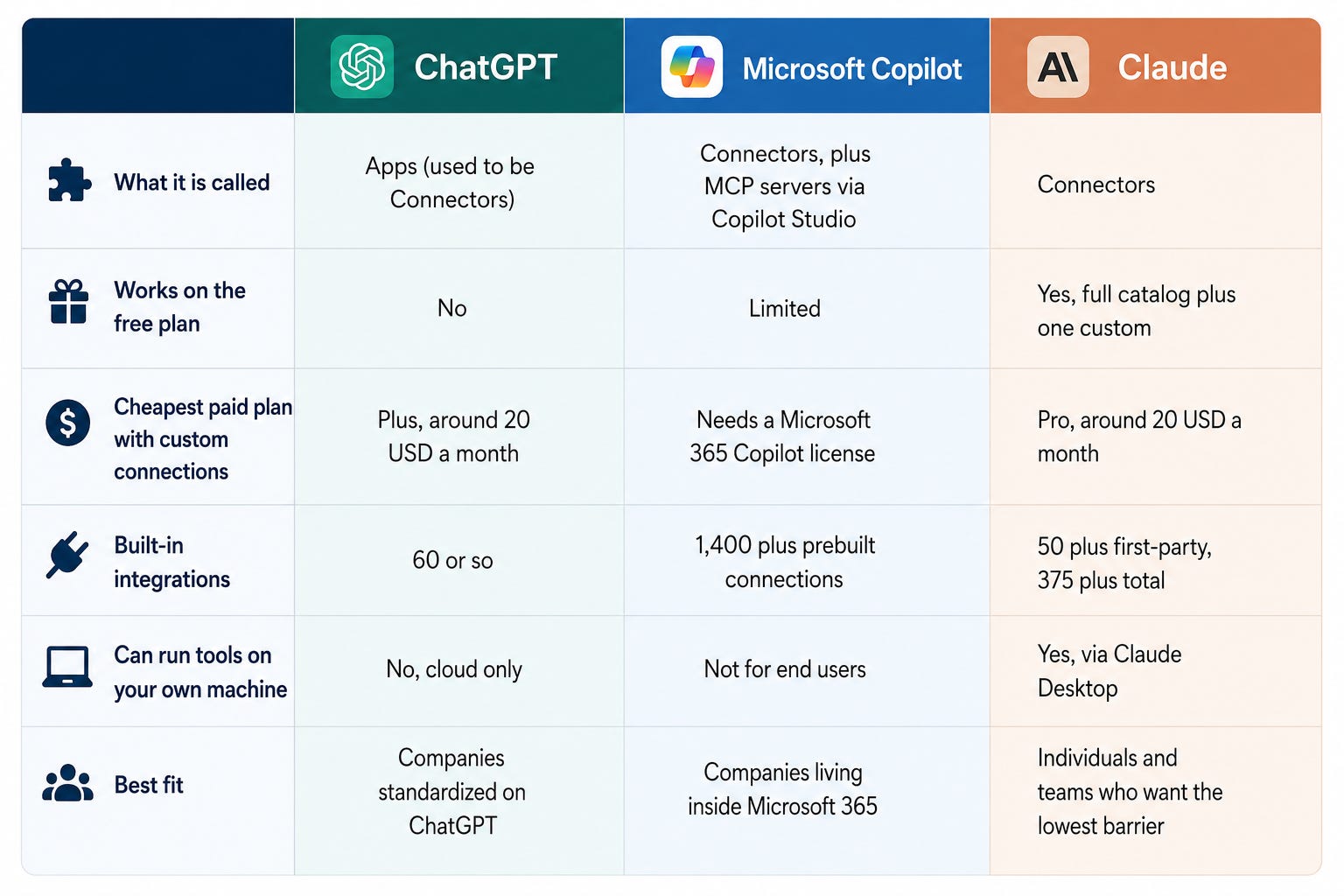
The plain-language version of that table?
If your whole company already runs on Microsoft 365, Copilot is the smooth choice, because it reaches Outlook, SharePoint, and OneDrive through the same login and the same security rules you already have. Most of the time your IT admin switches it on and you do not configure anything yourself. The tradeoff is that it is the most complex model under the hood, with the most gatekeeping. That gatekeeping is a feature when you are a 5,000-person regulated business and a mild annoyance when you just want to try something on a Tuesday.
If your company has settled on ChatGPT, its Apps give you the widest spread of third-party tools. Slack, HubSpot, Canva, Stripe, Atlassian, the lot. The Plus plan covers most of it. It is cloud only, so it never touches files sitting on your own laptop.
If you want the lowest barrier to entry, Claude wins, and I say that as someone who uses it daily so take the bias as disclosed. The free plan already reaches the full catalog and lets you add one custom connection. It is also the only one of the three that runs tools locally on your own computer, which matters for sensitive HR data you would rather not send anywhere. That local option is the quiet reason a lot of HR people land here.
None of these is wrong. The real question is rarely “which integration do I get,” because they mostly share the same ones through MCP. The real question is “which app do I want to live inside all day.” Pick the room you want to work in.
How you connect something, in Claude, step by step
Enough theory. Let me walk one all the way through so it stops being abstract. I will use Claude because it has the fewest moving parts, and the shape is nearly identical in the other two.
Say you want to connect Notion.
Click your account icon, bottom left corner.
Choose Settings.
In the left sidebar, click Connectors.
Click Browse connectors to open the catalog.
Find Notion and click Connect.
A login window opens. Sign in to Notion the way you normally would.
Read the permissions list. Read it properly, this is the part people skip. Then approve.
You land back in Claude. Notion shows a green status. Done.
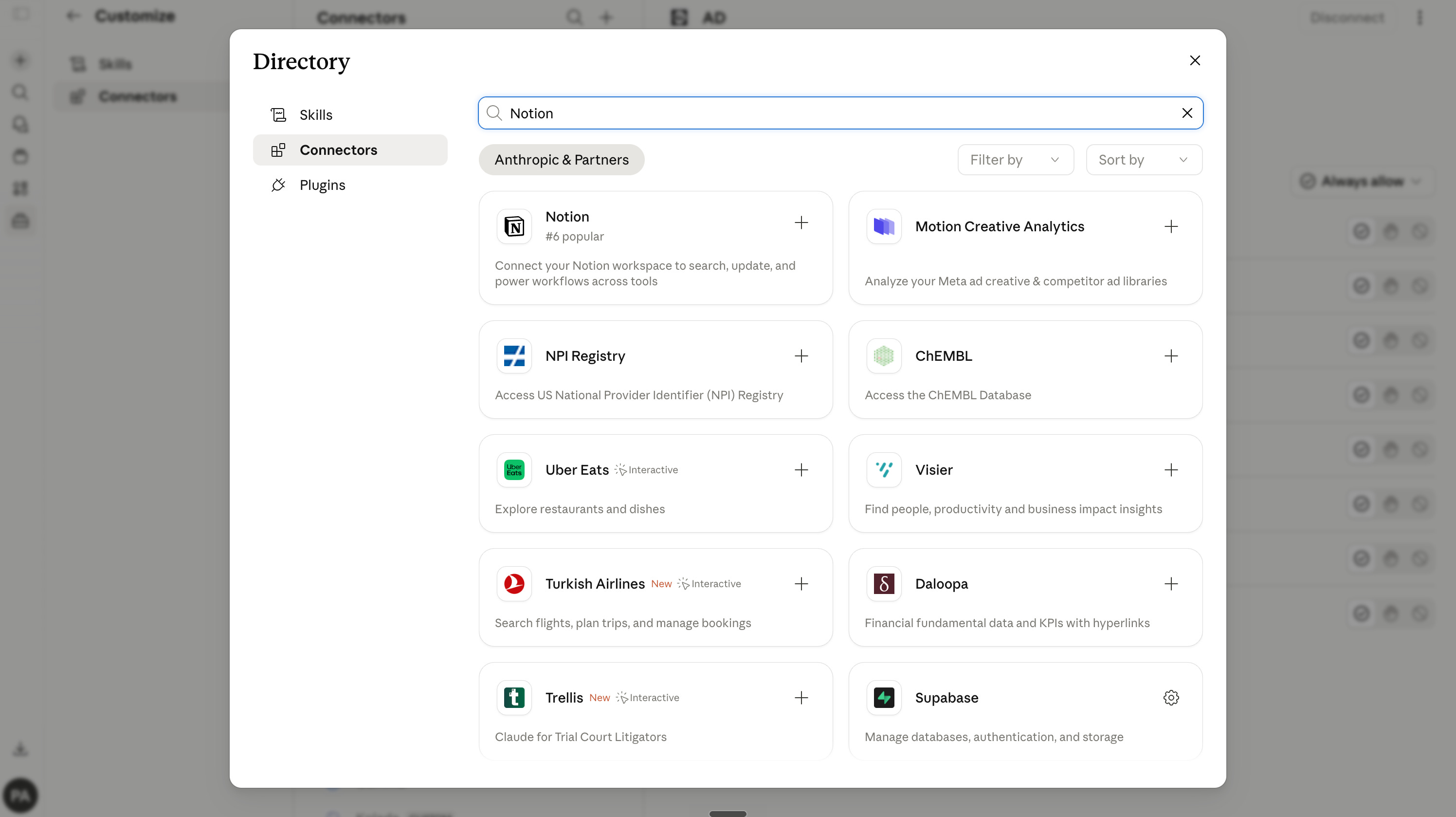
That is it. Maybe ninety seconds. You can disconnect it from the same page whenever you want, and you should disconnect things you stop using, the same way you would deactivate a key card for someone who left the team.
The flow in ChatGPT is the same idea. Profile icon, Settings, Connectors or Apps, find the tool, Connect, approve. In Copilot it is usually your admin who flips it on, and you find the result in the Agents panel on the left.
Using it once it is connected
Once a tool is connected, you mostly just talk.
You type “search my Drive for the Q4 onboarding deck” or “create a task in Asana for the offer letter review” and the AI picks the right tool on its own. You do not memorize commands. You describe the outcome.
If you want to be explicit, all three let you summon a specific tool. In ChatGPT you type @ and pick it, like @Gmail find messages from Lisa last week. In Claude you hit the plus button or type a slash to choose connectors. Small conveniences, not requirements.
And before the AI does anything that changes your data, sending an email, deleting a file, updating a record, it stops and shows you exactly what it is about to do and waits for your yes. That pause is your friend. We will come back to why you should resist the urge to click “always allow” on everything.
A grounded HR example, end to end
Let me make this concrete with something you might do this month.
You connect three things. Your calendar, your file storage where policies and templates live, and your meeting transcription tool if you use one like Granola or Fireflies.
Now you can ask “what did I promise the manager group in our June sync, and have I sent it yet.” The AI reads the transcript, checks your sent mail, cross-references the calendar, and tells you. No tab-switching and no digging through your own inbox like an archaeologist.
Pair that with a Skill, the reusable recipe from the last newsletter, and it compounds. You build an exit-interview-summary skill once. Then you say “pull last quarter’s exit interviews from Drive and run the summary skill.” The connector fetches the files. The skill shapes the analysis your way. You read a finished draft instead of starting from a blank page and a sigh.
Connectors give the AI reach. Skills give it judgment. Together they turn it from a clever stranger into a colleague who knows how your function works.
The cautious part, because HR of all functions should read this
I would be doing you a disservice if I made this sound risk-free. It is not, and the risks are the kind we need to understand.
When the AI acts in your tools, you are accountable for what it does, the same as if you handed the task to an assistant. If it sends the email, that email is yours. The vendors are explicit about this, and so am I.
Read the permissions before you approve a connection, and keep them as narrow as the tool allows. A connector that only needs to read should not be granted the right to delete.
Resist “always allow.” There is a mode in these tools that lets the AI act without pausing to ask. It is convenient, and it meaningfully raises your exposure to a class of attack called prompt injection, where hidden instructions in a document or web page try to hijack the agent. Use the pauses, they exist for you.
Only connect tools and custom servers you trust. If a vendor offers an MCP server, “do I trust this vendor” is the entire security question in plain clothes.
And the big one for those of us in the EU. Be careful with GDPR and with sensitive HR processes. Approval to summarize a recruiting note is not approval to run a termination workflow. Treat each new use case as its own conversation with your data protection officer and your legal team. Bring them in early. The difference between a smooth rollout and a mess is almost always whether IT, legal, and your DPO were in the room at the start or found out afterward.
None of this is a reason to avoid the technology. It is a reason to walk in with the answers ready instead of being slowed down by questions you did not anticipate. Security here is a question that can be answered. The answer just requires the right people in the room.
Wrapping up
Strip away the acronyms and this is simple.
A connector is a key card that lets the AI reach one of your tools. MCP is the shared standard that made every tool and every AI agree to use the same kind of card, so you plug in with clicks instead of projects. The three big AIs all run on it, and the choice between them is mostly about which app you want to work in and how deep you already sit inside Microsoft.
Start small. Connect one tool you touch every day, your calendar or your Drive. Approve the permissions consciously. Ask it to do one real thing. Watch it reach into the building it could not enter yesterday.
Then add a second tool. Then pair it with a skill. That is the whole game, and it is less hard than it sounds, which, again, is roughly true of most things in this field.
If you want to build this properly with a group, the Cowork for HR cohort on the 4th of June is exactly that. A few spots left.
Questions? Email me at johannes@sundlo.com. I am not always fast, but I respond.
Good luck.
This guide is free and meant to be shared, copied, adapted, and pulled apart. If you build something useful on top of it, send it back!